Bullying
10:27 AM | 0 Comments

Select the following logos from internet:
apple computers logo, starbucks, free logo
- Create a new layer
- Select the brush tool
- Select several colors and paint each logo
- Select Filter>Blur>Gaussian Blur
- Select Pin light filter from Layers window
- Save as, logo1.psd, logo2.psd, logo3.psd in Bimester 4 Folder
Rainbow eye in photoshop
8:04 AM | 0 Comments
Blur>Gaussian Blur
5:58 AM | 0 Comments

February 15,2011
Students will apply the following tools:
Select 3 images of big eyes
- Create a new layer
- Select the brush tool
- Select the brush size
- Select the first color you want and repeat this step with several colors until you fill all the eye with circles.
- Select Filter>Blur>Gaussian Blur and move the Radius to 16 pixels
- Select Overlay in the layers window and the eye will look like a rainbow eye.
- Repeat the same steps for 3 eyes and save them as eye1. psd, eye2.psd, eye3.psd in Bimester 4 folder in your documents.
Have a nice class !
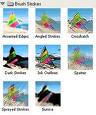
Filter > Brush strokes
5:52 AM | 0 Comments
January 25, 2011
Students will design an Allegory of the following topics.
* First find out the meaning of allegory
* Topic for allegory one is "your childhood"
* Topic for allegory two is " your teenage"
* 3 images in each proyect and apply Filter > Brush strokes
Students will design an Allegory of the following topics.
* First find out the meaning of allegory
* Topic for allegory one is "your childhood"
* Topic for allegory two is " your teenage"
* 3 images in each proyect and apply Filter > Brush strokes
and use one of them in each image
* For allegory 2, use the lasso tool in a small area of the image and apply Filter > Brush stroke just to that area.
* Finally Type a title to your proyect My Childhood for project 1 and My teenage for project 2 and apply Blending option > Inner shadow and Outer Glow move the slide bars to maximize the effect.
Good luck students, you can do it !
* For allegory 2, use the lasso tool in a small area of the image and apply Filter > Brush stroke just to that area.
* Finally Type a title to your proyect My Childhood for project 1 and My teenage for project 2 and apply Blending option > Inner shadow and Outer Glow move the slide bars to maximize the effect.
Good luck students, you can do it !
Photoshop- Clone stamp
10:13 AM | 0 Comments

This week students will practice the tool clone stamp in photoshop, just follow instructions:
1. Select an image with two ducks in a lake
2.- Make a layer copy with ctrl-j and work in the copy
3.-Select the clone stamp tool
4.- Press the Alt key plus the left button of your mouse in the color area to be copied instead of one duck
5.- and start to remove it
6.- Add a title (Clone stamp tool) and apply blending options
7.- Save the project as clone stamp.psd in BIM 3 folder
Good luck!
Welcome students !
7:44 AM | 0 Comments

This class we will practice how to do a blog step by step, that way each of you will design a user manual to create one in your home.
Good luck everyone!

